Welcome to Chrome Fans Blog



Page load time is an very important part of web user experience, it's also becoming a more important factor when it comes to search engine rankings. If your site is too slow, perhaps you need to optimize the web site or migrate to a faster server. There are many tools for checking how long it takes to load your website. Today I integrated this feature to PageRank Status 6.30 (A SEO toolbar for Chrome), it shows the page load time of current web page and rates it, and also provides the timing-related information...

Wouldn’t it be great if you could make your own extension in just a few minutes?
Wips.com is a startup company with over 1milion users located in Europe that developed a technology that allows that. Using the technology you can create extensions in just a few minutes for:
- YouTube channels;
- RSS news;
- Search extensions;
- Toolbar;
- Custom extensions.
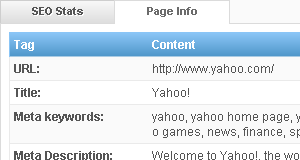
Meta Tags always goes inside the HEAD area and will not be displayed on the page. If you want to check or analyze the Meta Tags, you can right click the mouse button in the web page and then select View Page Source, how ever, this method is not convenient.
I released PageRank Status 6.0 today. PageRank Status is a SEO extension for Chrome browser to easily access the Gogole PageRank, AlexaRank, balnklinks, traffic data, cached pages, whois, SNS profile and more. In version 6.0, it supports for displaying the SEO releated meta elements of current web page...
Free Web Tools & Extensions
- Open Admin Tools - Website Stats
- Free Online Ping
- GEO IP Lookup
- Top 10 Web Hosting
- Open SEO Stats - Chrome SEO Toolbar
- Online PageRank Checker
- WHOIS Lookup
- Free MD5 Hash Calculator
- File Icons Project
- Attachment Icons for Gmail & Google Apps
- Chrome Downloads Extension
- Coupons Search Engine
- Google Plus Search Engine
Open SEO Stats 10.0 Released